WM Ware Training
what is WM Ware in the First we most know what is WM?
WM ware for Installing Windows The virtual install it . u can do any thing install windows 7 or windows 8.1 or Windows 8 and Windows 10 you Can Install But it is easy Install for Windows
I Gonna Show how To create INSTALL Window Let's show you.
1:Create A New Virtual Machine.
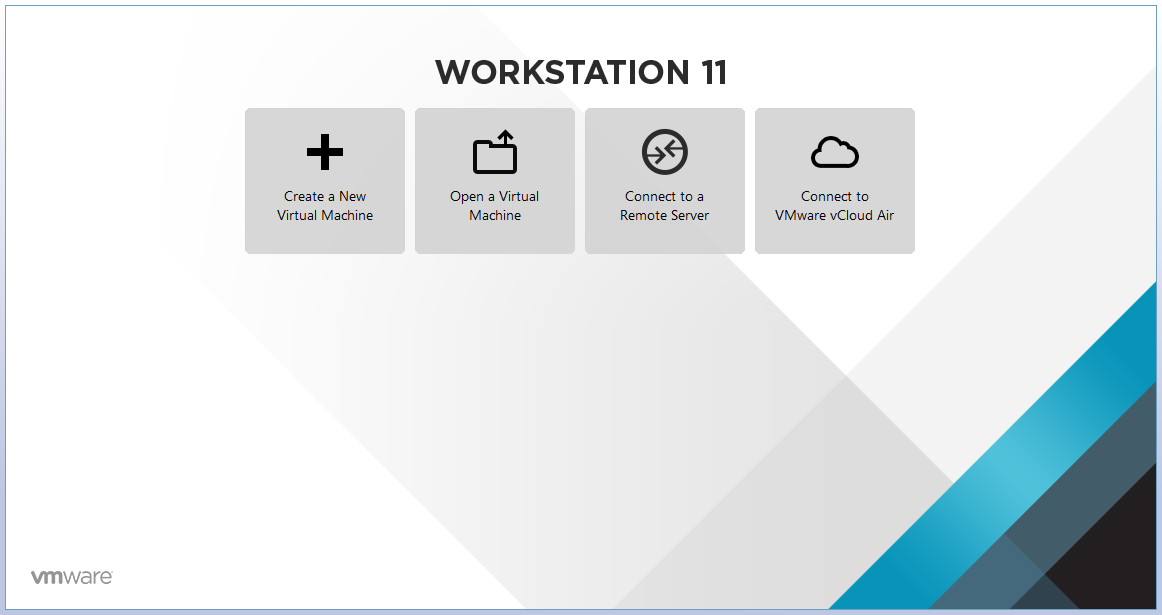
in the first you most open the
Wm Ware Workstation After open Click the Create a new virtual machine see here in picture i am show.
2:Second Stag in New Virtual Machine Wizard.
when the click create a new virtual machine coming this page if coming this page Select
Custom (Advanced) when the click custom (Advanced) then Click Next.see the Picture .
3:Third Stage New Virtual Machine Wizard.
when the coming this page Do not do anything then Click Next or Enter,
4:Fourth Stage New Virtual Machine Wizard.
in here Enter your CD/DVD In cd/dvd room if do not have CD/DVD it's No Problem
you can install with image image of Windows 7 or Windows 8.1 or Windows 10 or Windows 8
if you want install windows with image click the browse then you Find Image of Windows
After Find Image Windows click on window then click the Next.
5:Fifth Stag New Virtual Machine wizard.
in this page in over Windows Product Key if your Windows have key write if your windows do not had it's no problem in down is Version Of windows to install you can select every version you can select for Example version of ultimate Version you can select After Version is Personalize Windows
Full Name:write you full Name
password and confirm password means Re Enter Password then click Next.
6:Sixth Stag New Virtual Machine Wizard.
in here you most click yes when the click yes com next page.
7:Seventh Stag New Virtual Machine Wizard.
in virtual machine name write your windows name or your name you can write when the write
your windows name then click Next. see picture
8:eight Stag New Virtual Machine Wizard.
in her all of right this selected is right is right then click Next
9: ninth Stag New Virtual Machine Wizard.
in here all is right then you most click Next.
10:Tenth Stag New Virtual Machine Wizard. Memory for the Virtual Machine.
in here memory for the virtual machine Give him Memory then Click Next.
11:Eleventh Stag New Virtual Machine Wizard. Network Type.
you Most select use network address translation (NAT) Because with this select option you can connect you personal computer and Computers that in itself is Virtual then Click Next .See the Picture.
12:Eleventh Stag New Virtual Machine Wizard. Select I/O Controller Types.
Select the LSL LOGIC SAS then click Next.
13:13th Stag New Virtual Machine Wizard. Select a Disk Type.
select the SCSI (Recommended) after click scls then click Next.
14:14th Stag New Virtual Machine Wizard. Specify Disk Capacity.
Here you can choose the size of your hard then click Next.
15:15th Stag New Virtual Machine Wizard. Specify Disk File.
click the browse then any were save your WM Windows After Save Windows Then Next.
16:16th Stag New Virtual Machine Wizard . Specify Disk File
After the save Windows Then You Most Click Next.
17:17th Stag New Virtual Machine Wizard. Ready to create Virtual Machine .
Click Finish.
18:18th My Windows is ready then we can install it very easy